The Streamline AI platform

Streamline AI Email Intake

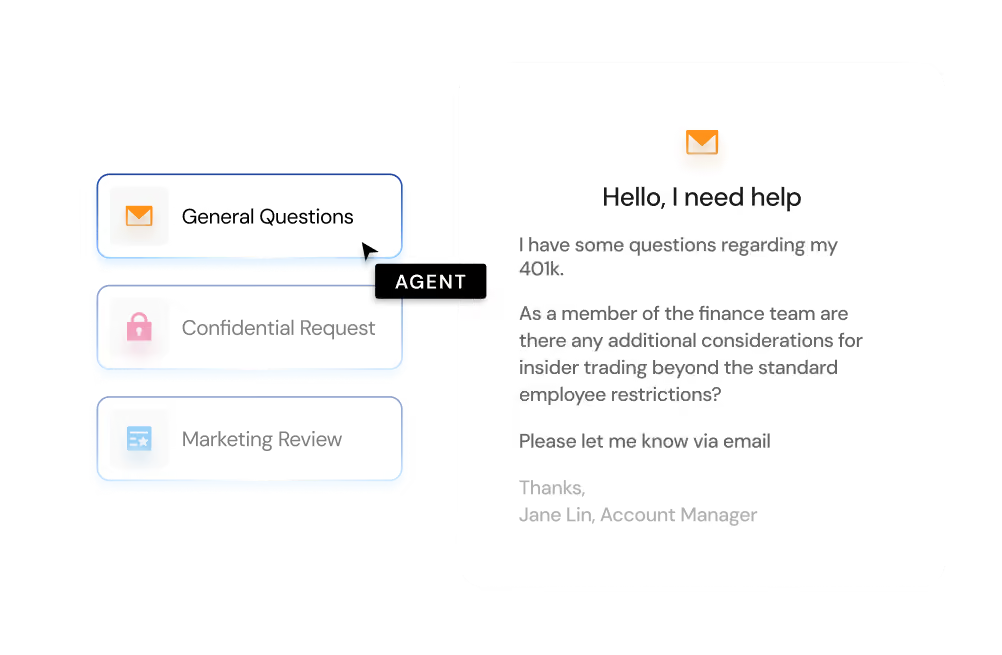
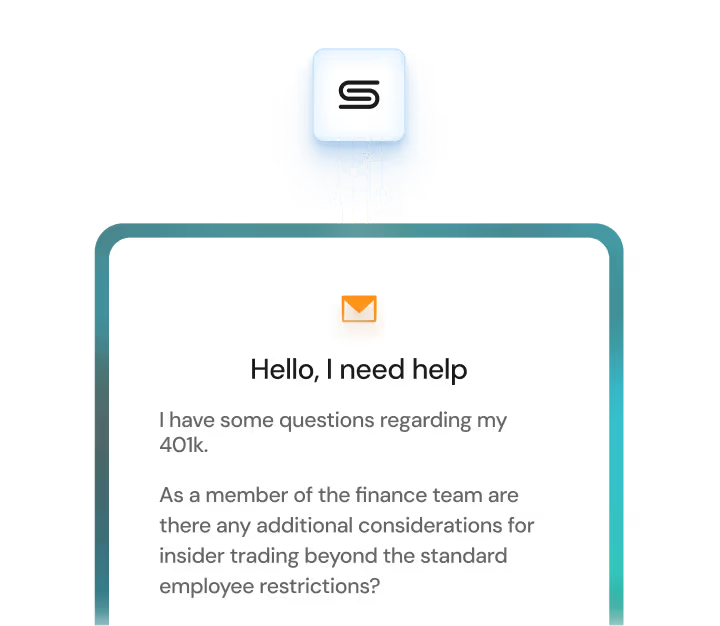
Streamline AI’s Email Intake feature transforms how legal and business teams handle incoming email requests.

Book a demo
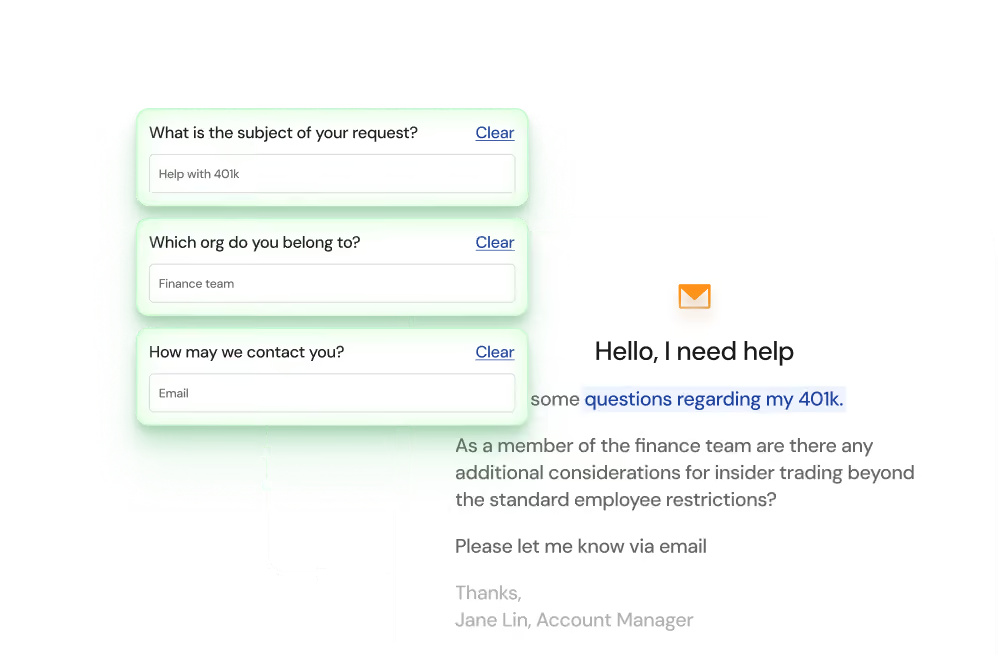
An email is parsed and used to answer form fields

AI-Powered Email Parsing

The AI Intake system automatically processes incoming emails, identifying key information to create a new request and populate form fields, saving time and reducing errors.

Intelligent Field Auto-Population

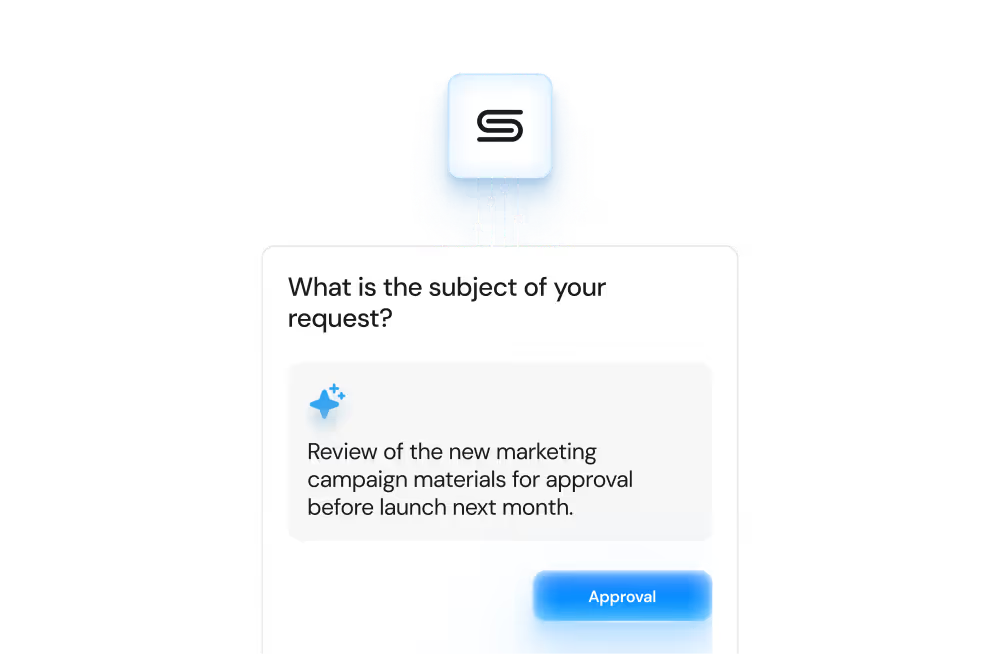
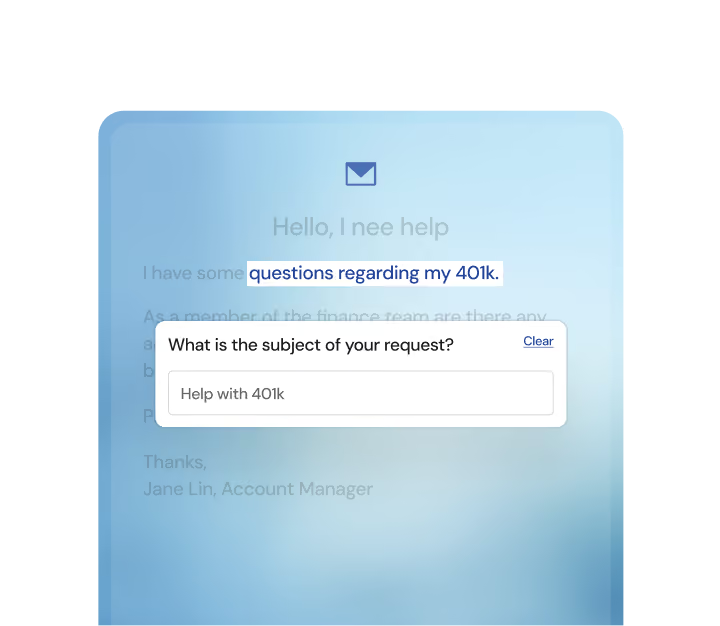
AI suggests field values such as request type, counterparty information, and dates, making it easier to complete requests.

User Review & Confirmation

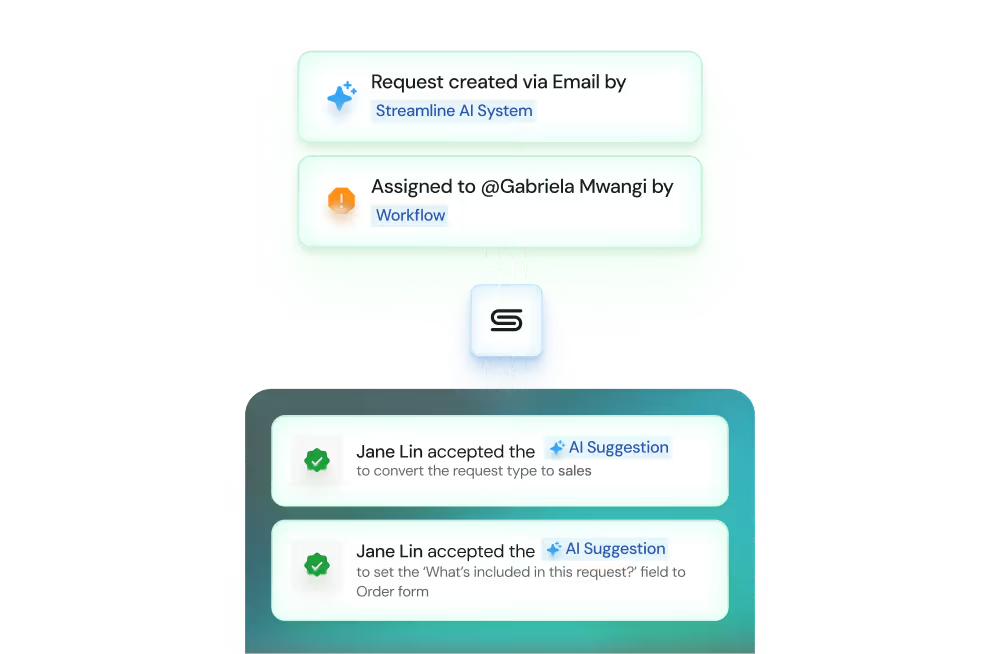
Users can review AI-populated fields and either confirm or edit the suggested values, ensuring accuracy before proceeding.

Seamless Workflow Execution

Once confirmed, requests move seamlessly into Streamline’s workflows and behave like other requests, though your activity history will indicate if the request was triaged by AI Intake. with clear indicators showing that AI processed the request.

How it works

By leveraging OpenAI’s ChatGPT-4o mini, the AI Email Intake automatically parses incoming emails, creates requests, and predicts the value of relevant fields so users only need to confirm the AI suggestions, saving significant time when processing incoming requests. This dramatically reduces the manual effort required for triaging email requests and enables users to focus on higher-value tasks, like decision-making and approvals.

Step 1

AI-Powered Email Parsing

The system reads incoming emails and guesses the appropriate request type and populates field values.

Step 2

Request Review

The user reviews AI-populated data, with clear UI elements highlighting which fields were auto-populated.
Step 3

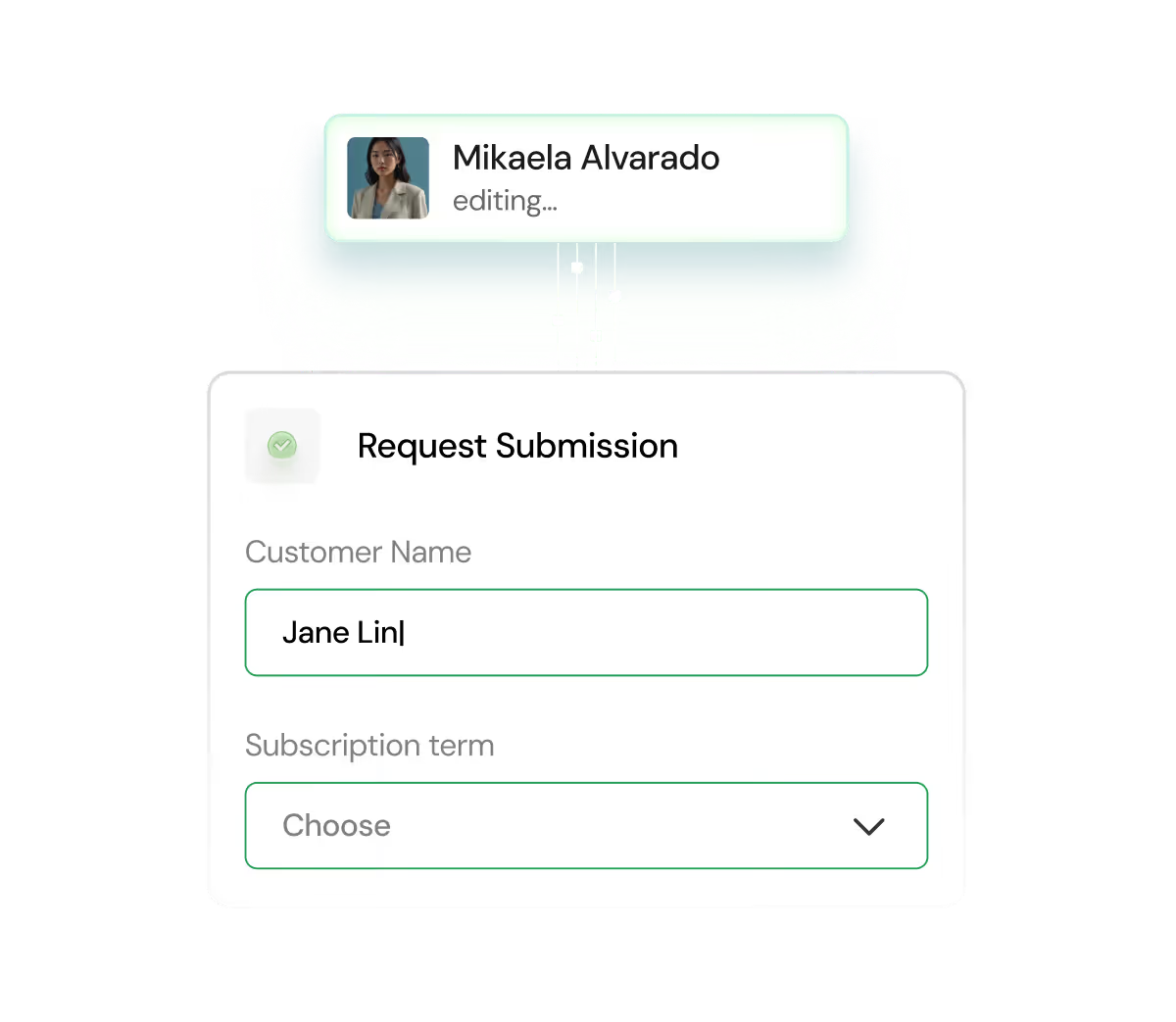
Edit & Confirm

Users can edit AI predictions or revert to original AI values, then confirm the request to save it.
Step 4

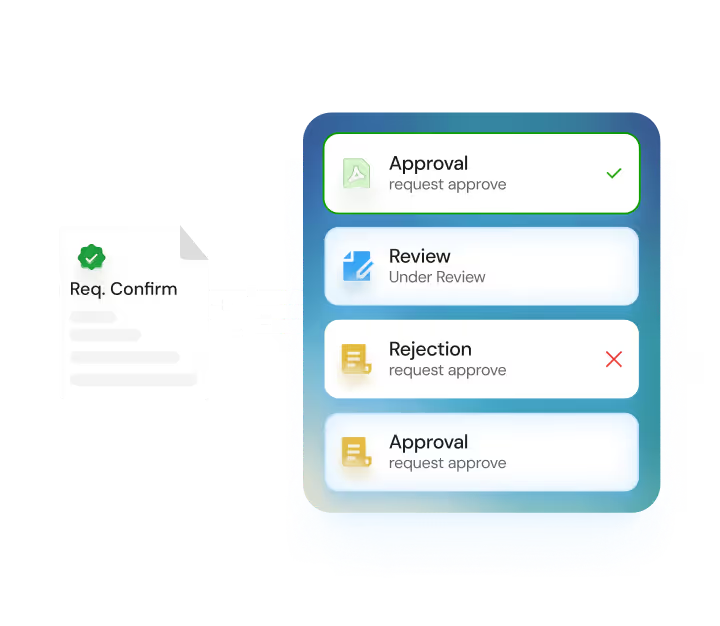
Workflow Activation

After confirmation, the request triggers workflows like approvals, rejections, or task assignments.

Core Use Cases

A checkmark icon
AI Successfully Guesses Request Type

AI processes the email, assigns the request type, and populates fields. The user is notified and can review and confirm the information.

A cross icon
AI Fails to Guess Request Type

The email is listed in the tracker for manual triaging by the user. The user can assign the correct request type and proceed.

An icon with both a checkmark and a cross
AI Guesses the Wrong Request Type

The user can manually update the request to the correct type. 

Coming Soon

users will be able to select the correct type and re-run AI Intake.

At mention icon
Hashtag Use

Users can add hashtags to the email body (e.g., #NDA) to categorize requests under the correct matter type. The AI processes the email based on the hashtag.

Technologies

Natural Language Processing (NLP)

Powered by ChatGPT-4o mini, the AI processes unstructured email content and extracts relevant data.

AI Suggestions

Field values are auto-populated based on the email content.

Real-Time Parsing

AI parsing updates occur in real-time, with visual feedback for any user actions.

Data Privacy and Use Policy

Data Storage

Email data is stored securely on OpenAI servers for 30 days before deletion as part of general operations and abuse detection.

No AI Training on Customer Data

OpenAI does not use customer data to train its models. All data processed remains isolated and is not commingled between customers.

Security Practices

Communications are secured, and customer data is fully protected, complying with industry standards.

Ronak from Pantheon

“Streamline AI enabled us to deliver consistent 24-hour SLAs across multiple teams, including Legal, Finance, People Ops, InfoSec, and IT, as we scaled our vendor needs by 20% each quarter.”

Ronak Ray, General Counsel at Pantheon

Read the case study →

Frequently Asked Questions

Detailed FAQ →

The AI reads incoming emails, extracts key information, and creates a new request with auto-populated fields. Users can review and confirm the AI-predicted data before saving the request.

Yes, users can modify AI-predicted fields and revert to the original AI predictions if needed.

Email data is processed securely, with encryption for both storage and transmission. OpenAI retains the data for 30 days for operational purposes before it is deleted.

While AI is designed to make accurate predictions, there may be instances where the request type is incorrect. In this case, users can manually triage the request into the correct type.

No, Streamline does not use customer data to train OpenAI’s models. Data is only used to generate the AI suggestions within the AI Email Intake feature.

No, once the user confirms the entries, an AI-generated request will behave like any other request in the system.

When thinking about how emails enter Streamline, ask yourself the following questions: Will only the Legal team be allowed to send emails into Streamline, or will other users across the business also submit email requests? Most customers who successfully leverage email intake take one or both of the following approaches:

  1. They have Legal individually forward in emails and set the expectation with the Requestor that further collaboration happens on the request inside Streamline
    AND/OR
  2. They have a dedicated forwarding alias that auto-creates requests in Streamline and  they receive a single type of request in that mailbox (e.g., they may have requestors send all NDAs to nda@acmecorp.com), while also setting the expectation with the Requestor that further collaboration happens inside Streamline

Internal requestors

The best practice is to set up internal requestors via SSO and user auto-provisioning in Streamline so the business gets notifications about status changes and can collaborate on the request.

External requestors

We recommend that emails from external requestors (e.g., a contact at a vendor) be received in Streamline and responded to in an email -thread. However, this means as external collaborators, they will not have access to the Streamline request in the platform; they will see communications sent to them via the “Email” tab in the collaboration hub..

Should email intake be a primary way requests get created?

If you choose email as a primary intake method, you will want to keep required fields in your forms minimal so that requests flow smoothly.

Use email for one-off use cases

Forwarding select, one-off emails into Streamline is an easy way to bring requests into the system for users who refuse to learn a new workflow.
Example: Your CFO emails you directly. Instead of asking them to complete a form, you can forward the email into Streamline, assign the CFO as the requestor, and continue the conversation from there.

Auto-forward from systems and aliases your team already uses

If you receive requests from other systems or key aliases (e.g., nda@acmecorp.com), auto-forwarding those notifications allows Streamline to categorize and route them to the correct request type automatically—saving time and reducing manual review.

Work out of Streamline - not your email inbox

Assignees will get the most value when they communicate through adding comments in the Collaboration Hub.
This ensures that the communication is tracked in the history of the request, keeping a clean audit trail in Streamline.

If you have multiple Core Teams (e.g., both legal and HR are using Streamline as a tracking system) or groups who shouldn’t see each other’s requests (e.g., sensitive HR documentation), email intake may require extra configuration. Visibility rules can be preserved - you’ll just want to partner with your Customer Success Manager to set it up correctly.

(Included here for transparency, but we recommend building your actual workflow based on the best practices in the “Do’s” section above.)

For the most successful email intake implementation in the Streamline platform, we recommend that you think about Streamline as your point of truth for requests: All assignees and requestors ultimately collaborate in the platform, regardless of whether they started from email or form submissions.  

This means you should focus on:

  • Adding business users into Streamline via SSO and user auto-provisioning
  • Forwarding emails into Streamline on a one-off basis
  • Auto-forwarding specific aliases and notifications from other systems into Streamline AND
  • Managing requests and additional communication from within Streamline 

This means we also don’t recommend setting up your Streamline email intake in the following ways:

  • Relying exclusively on email intake without bringing other people in your organization into Streamline as business users
  • Forwarding an entire inbox into Streamline rather than using a specific alias (e.g., we do not recommend forwarding legal@acmecorp.com into Streamline; this alias will likely receive a number of different types of requests in addition to email that isn’t intended to become a request at all, like spam or general communications) 
  • Manually forwarding every individual message from the business into Streamline; this can create duplicate work, clutter your queue with irrelevant emails, and make it harder to track and manage compliance. 

Work smarter

Scale your legal team's efficiency and effectiveness with modern workflow automation tools designed for in-house legal.

Request a demo